Best Blogger Tips
Showing posts with label Operating System. Show all posts

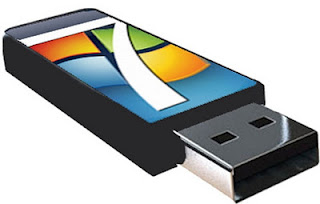
SETUP WINDOWS 7 AND VISTA FROM USB DRIVE.

'Happy new year' greetings from PCtionary , Ok since it's 2012 i would like to show one of my favorite tutorials i'd learn when i was on college, whenever im in hurry installing windows OS (Operating System) i always forgot to carry all my CD/DVD installer, But for some reason's every time i grope my pocket i feel a USB drive. 
That's why i had an idea "what if i install OS using pendrive?"  
Good Idea. So in this tutorial ill show this useful trick.


WHAT YOU NEED:
1. POWER ISO (one of my favorite)
2. USB DRIVE recommended 8gb


Step1: Create Bootable USB Drive:
  1. Start PowerISO (v4.8 or newer version, download here).
  2. Insert your USB drive/Pendrive
  3. Choose the menu "Tools > Create Bootable USB Drive". The "Create Bootable USB Drive" dialog will popup. If you are using Windows Vista or Windows 7 operating system, you need confirm the UAC dialog to continue.
  4. In "Create Bootable USB Drive" dialog, click "..." button to open the iso file of Windows 7.
  5. Select the correct USB drive from the "Destination USB Drive" list if multiple USB drives are connected to the computer.
  6. Choose the proper writing method. "USB-HDD" is recommended.
  7. Click "Start" button to start creating windows 7 bootable USB drive.
If no errors occured in the above process, you should now be all set to setup Windows 7 from USB drive!

Step 2: Configuring the BIOS:
You should now reboot and go into the BIOS configuration to boot from USB. Instructions for doing so wildly from system to system, but generally entail the following:
  1. Reboot the system.
  2. While booting (before Windows starts loading), get into the BIOS configuration screen by hitting something like F1, F2, Delete or Escape. Hotkey instructions are generally provided on the screen.
  3. Go to the section that contains your boot devices.
  4. With your USB drive plugged in, the USB drive should be listed. If it isn’t, your system might not support booting from USB. Assuming that it is supported (as is the case with virtually all modern hardware), promote your USB drive to the primary boot device.
  5. Exit from the BIOS configuration, saving all changes.
If you’re completely new to BIOS configuration, Click here for more info. Be aware though, that you can seriously screw up your system by providing incorrect settings!

Step 3: Booting and setup windows 7 from USB drive:
Assuming that you properly configured your BIOS and your USB drive supports booting, Windows 7 setup should now load. Depending on the speed of your USB drive, this may take a while.
NOTE: If it isn’t working, then double-check the following before making a scene:
  • Is your BIOS properly configured for booting from the USB device? (Is the USB device listed and does it have top priority?)
  • Have you correctly prepared the USB drive in step one? (Restart the procedure.)
  • Does your USB drive properly support being booted from? (Try another one!)
Ok! hope you've follow above intsruction and done that correctly..

By Dude

WINDOWS 8 BETA COMING IN EARLY 2012.


Good news for windows user's Microsoft is on track to releasing Windows 8 on a similar time frame to Windows 7, with the first Beta of the new Operating System appearing in early 2012.

Microsoft has not said officially when it will be release   
Windows 8 or even when a beta version might appear. But two cool sources claim a Windows 8 beta release is coming in the next few months.

Speaking with anonymous sources "Close to Microsoft," The Next Web says Windows 8 beta version will
launch in February. But Win rumors claims the first stable test build of Windows 8 will appear a few weeks earlier in late January, according to its anonymous sources.

Whether it appears in January or February, an early 2012 beta release for Windows 8 is not particularly astounded. Many critics expect Windows 8 to follow a similar release schedule to Windows 7.

We knew in the past  January 2009 beta version of Windows 7 has publicly released. The near-final version of Windows 7 (known as the release candidate) debuted four months later and on October 22 Windows 7 officially launched.

Windows 8 launch in 2012 has also long been expected thanks to leaked documents and public statements by Microsoft's CEO Steve Ballmer. But there are also indications that Windows 8 may be finished bit more quickly than its predecessor (awesome). 

Nokia executive recently let slip to a French newspaper that the Finish handset maker plans to release a Windows 8 tablet in June 2012.


It's not clear if the Nokia executive meant the company will start producing the tablets or will actually be selling them in stores by June. If he meant the former, that still puts Windows 8's release along a similar schedule to Windows 7. Microsoft released Windows 7 to manufacturers in June 2009 so that device makers could begin incorporating the OS into their products. Windows 7 PCs were available in October of that year.


Windows 8 beta version may not be ready yet, but Microsoft in September released a developer preview of the new OS. If you'd like to try it out, you can go to download the Windows 8 developer preview.


By Dude

HOW TO INSTALL WINDOWS 7?

In this post, I’ll cover on installing windows seven– step by step with full explanation.

Before that we must first plan the installation process. When you run the Windows 7 Setup program, you must provide information about how to install and configure the operating system. Through planning can make your installation of Windows 7 more efficient by helping you to avoid potential problems during installation. An understanding of the configuration options will also help to ensure that you have properly configured your system.

By Dude

HOW TO INSTALL WINDOWS XP?


The best way install Windows XP is to do a clean install. It is not difficult to perform a clean installation. 


First things First
Back up your important data.
Make sure you have a computer drivers.
Check your computer specifications.
Check the OS recquirements.
You need Windows XP Installer.
I choose XP professional in this tutorial, So lets begin.
All versions of Windows XP CD are bootable. In order to boot from CD/DVD-ROM you need to set the boot sequence. look for the boot sequence under your BIOS setup and make sure that the First boot device is set to CD/DVD-ROM. Then you can perform the following steps to install Windows XP

By Dude